16 Haziran 2015 Salı
10 tips to computer security nr1

10 Nisan 2015 Cuma
Compliance Mindset Can Lead to Epic Security Fail
CAPTCHAs May Do More Harm Than Good
26 Şubat 2015 Perşembe
Windows 8 Security: What's New?
Windows 8 Security: What's New?

Contents
- Windows 8 Security: What's New?
- Alternate Passwords
Microsoft has been adding and improving advanced security features and capabilities in its Windows operating system and other applications over the past few years. Each iteration of Windows has featured improved security—necessary to withstand the constant barrage of attacks—and Windows 8 coming is no exception.
In Windows 8, Microsoft expanded its support for embedded hardware security, bundling a full-blown security suite into the operating system, introducing secure boot and signed applications, and enableing alternate authentication schemes, to name a few. Some of the latest innovations are aimed specifically at enterprise users and meet business needs, but there are plenty of improvements that end-users will notice right off the bat, too.

Secure Boot
Microsoft designed Secure Boot to protect the computer from low-level exploits and rootkits and bootloaders. A security process shared between the operating system and Unified Extensible Firmware Interface (UEFI, replacing the BIOS), Secure Boot requires all the applications that are running during the booting process to be pre-signed with valid digital certificates. This way, the system knows all the files being loaded before Windows 8 loads and gets to the login screen have not been tampered with.
If a bootloader has infected your computer and it tries to load during the boot-up sequence, Secure Boot will be able to undo all the changes and thwart the attack. Having Secure Boot means it is that much harder for attackers to try to compromise the start up sequence.
While PC makers have to have Secure Boot enabled in the UEFI firmware by default, if they want to be able to slap the Windows logo outside the box, the feature can be disabled within the UEFI interface. Anyone who wants to install a non-Windows operating system on Windows 8-certified hardware would first have to manually disable SecureBoot.
Windows Defender

As PCMag's lead analyst for security Neil Rubenking noted a few weeks ago, Microsoft decided to release Windows 8 with built-in antivirus. This is a much more robust application than Microsoft Security Essentials, the free anti-malware software that users could download and install manually in previous versions.
Windows Defender (Microsoft repurposed the name for the anti-malware product) is enabled by default, right out of the box, which means users have some form of security protection as soon as they turn on the machine. While it can't be uninstalled, it can be disabled if the user wants to install a different security product from another vendor (AV-Test has certified several as being Windows-8-ready). In fact, Windows Defender must be disabled if you want to install a third-party security suite.
Loading the AV First
Regardless of whether you are using Windows Defender or a different anti-malware product, Windows 8 has tweaked its load process so that security software runs first. Early Launch Anti-Malware (ELAM) insures that the first software driver loaded into Windows 8 is a driver from the user's anti-malware software.
In previous versions, if the malware executed and was loaded into system memory before the operating system and the antivirus, it was difficult to detect and remove. SecureBoot prevents rootkits from interfering with the OS, and ELAM ensures that pre-approved anti-malware software drivers are loaded before any other application.
Whether or not it is effective is unknown, but Goretsky noted in the whitepaper that the concept was "fundamentally sound."
SmartScreen

Originally an Internet Explorer security feature, Microsoft added SmartScreen to Windows 8. When a user downloads a program or a file from the Internet, the SmartScreen filter checks to see if other people have downloaded the same file as well. If so, there is a rating for the file based on its popularity and whether it was considered malicious. Users trying to download something with a low rating while Smart Screen is enabled will see a warning message. This can be good for detecting fake antivirus and other rogueware programs.
Since SmartScreen is now part of Windows 8, the filter will kick in regardless of what browser the user is running, not just Internet Explorer.
- 1
- 2
How to activate Windows Defender in Windows 8
Like every new Windows release, Windows 8 is more secure than the operating systems that came before it. That's due in large part to three major enhancements: An increased emphasis on UEFI Secure Boot optimizations, the extension of the SmartScreen Filter across the operating system, and the default inclusion of a more robust version of Windows Defender, which now protects against all kinds of malware—not just spyware.
Windows Defender's increased scope doesn't sit well with computer manufacturers, however. OEMs make beaucoup bucks by installing those trial versions of McAfee, Norton and other security suites you'll find bundled on boxed PCs. Windows Defender's default installation threatens that gravy train.
Microsoft tossed its partners a bone by allowing OEMs to deactivate Windows Defender in order to ship boxed PCs with alternative security solutions installed. That's all well and good from a "variety is the spice of life" perspective, but one side-effect that isn't so hot is what happens when you fail to register that third-party security software: Windows 8 doesn't automatically reactivate Windows Defender by default. In other words, your pretty new prepackaged PC is wide open and vulnerable to all the nasties of the 'Net.
Fortunately, activating Windows Defender is a snap. Here's how to do it.
Activate Windows Defender in Windows 8

First, head to the modern-style Start screen and type "Windows Defender" to have Windows search for the program, then click on the Windows Defender icon when it appears in the results. A Windows Defender window will appear on the classic desktop. If Microsoft's security software is disabled, you'll seen a lot of scary red tones alongside an "At risk" warning and an image of a computer screen with a big X on it. Subtle, eh?
Next, click on the Settings tab at the top of the window. Make sure "Real-time protection" is selected in the left pane, then check the box next to "Turn on real-time protection (recommended)." Finally, click Save Changes at the bottom of the Window.

You'll know it worked when the terrifying red "At risk" bar at the top of the Windows turns a much more soothing shade of green and switches to "PC Status: Protected."
Check for leaks
You're not quite done yet. Now it's time to make sure your PC is actually malware-free! Click the Update tab, then click on the big Update button in the middle of the Window to download the latest malware definitions Microsoft has on file.
Next, open the Home tab and select the "Full" radio button in the Scan Options list. All you have to do now is click Scan Now, then sit back and wait while Windows Defender checks the nooks and crannies of your PC for any hidden baddies. Grab a cup of coffee; it may take some time. While you're waiting, we recommend checking out your Windows 8 antivirus options.

Windows 8: Put its hidden security features to work!
Don't let the Windows 8 haters brainswash you: Microsoft actually introduced a few great features in its new operating system, some of which will help keep you safer from malware and other security threats. Though most of these security enhancements are active by default, you still must be proactive to get the most from them. Also, one new Windows 8 feature presents specific security concerns that must be addressed to keep your PC—and your data—as safe as possible. Let's jump in and investigate.
Buy a new PC instead of upgrading
To take full advantage of Windows 8’s new security features, your PC needs to run a new kind of boot system called Unified Extensible Firmware Interface (UEFI). This system, which replaces the archaic Basic Input/Output System (BIOS), adds many new boot features and greatly speeds the startup process.
Included in UEFI is a feature, called Secure Boot, that helps prevent unauthorized operating systems and malware from running at startup. This makes it more difficult for data thieves to use bootable discs or flash drives to access your files; it also helps keep rootkits—a form of malware that's hard to detect—from infecting your computer during bootup.
Some PC vendors included UEFI on select systems in the past, but Secure Boot requires a new version, specifically UEFI revision 2.3.1. So if your system originally came with Windows XP, Windows Vista or Windows 7, it likely doesn’t include UEFI. And if it does include UEFI, it’s probably an earlier version that doesn’t support Secure Boot.
Though some PC and motherboard vendors offer upgrades to UEFI, you might want to consider buying a new PC or board that’s designed for Windows 8, as such hardware must include UEFI and have Secure Boot enabled by default.

If you’re technically inclined, however, you can double-check an older PC’s UEFI compatibility before you run out and buy a new system. First, try pressing the traditional BIOS or setup key (such as F2 or Delete) during booting just after you turn on the system. There, you can find your BIOS or UEFI version.
From Windows, you can type msinfo32 in the Start menu search field or the Run prompt to find the BIOS version. If it appears you have a traditional BIOS, you could check with the system or motherboard vendor to see if it's offering upgrades to UEFI. And if the UEFI version you have is older than 2.3.1, see if there are any updates for your PC.
Take precautions when using a Microsoft account
In Windows 8, you can now optionally sign into Windows with a Microsoft account using your email address. This account stores many of your personal Windows settings, preferences, and saved passwords, as well as other items like browser history, favorites, and Windows 8 apps, on Microsoft's servers. Whenever you log on to a new Windows 8 device with that Microsoft account, all your data automatically syncs to your new hardware.
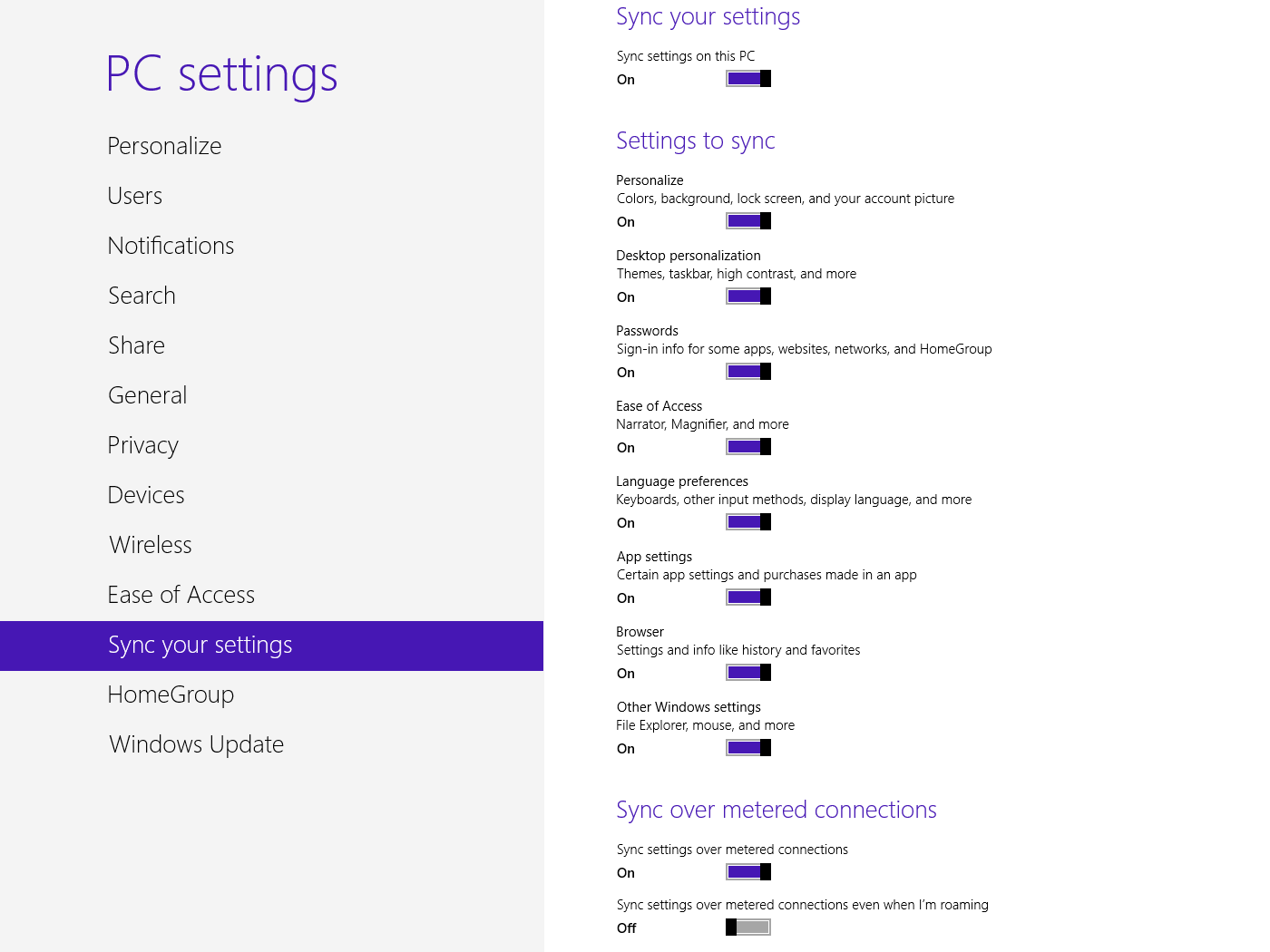
Although this new syncing functionality can be useful, it does pose a security risk. If malcontents get your Microsoft account password, they could log in to your account at another Windows 8 PC and access your synced data. And if you use Microsoft’s SkyDrive cloud storage service, they’ll quickly be able to access your online files.
To help prevent your Microsoft account from being hacked, use a strong password when creating your account in Windows 8. Try to make it as complex as you can with lower- and uppercase letters, numbers, and special characters, and avoid words from the dictionary. Also make sure to use a unique password. If you simply re-use the same old string that gets you into other sites and services, you're just asking for trouble. Finally, you should avoid storing any truly sensitive documents in SkyDrive.
If you already have a Microsoft (or Windows Live) account, you can use it when logging into Windows 8 instead of creating a new account. And if your existing password isn’t strong, you can always change it.
Fortunately, your saved passwords from Internet Explorer, networks, and Windows 8 apps aren’t synced to a new system until you confirm it as a “Trusted PC.” Once you sign in to a new Windows 8 system, Microsoft sends you an email and/or a text-message alert asking you to confirm it. This is a great protection mechanism, but if you’re using a Microsoft email address (Hotmail, say), or if someone knows both your Microsoft account and your other email password, he could confirm the PC he’s using as trusted and then access all your saved passwords.
To help make the process of confirming trusted PCs even more secure, use a non-Microsoft email address for your Microsoft account, and use a different password for that email account (which you should be doing anyway). Also make sure to enter your mobile number on your Microsoft account and update it when it changes. You can always add and change email addresses and mobile numbers.
Choose your antivirus program wisely

Windows 8 comes with built-in antivirus software as part of the updated Windows Defender program. However, if your PC manufacturer included a third-party antivirus program with your computer, Windows Defender may be disabled. Either way, make sure you have some form of antivirus program installed and enabled. And if you're considering a commercial antivirus suite, compare the different security suites and choose one that offers good protection—our recent security suite roundup is a good place to start.
Bottom line
We’ve discussed some security concerns with Windows 8 and how to combat them. Remember, in order to use the new Secure Boot feature, you need to purchase a new system that is Windows 8–certified, or make sure that your current system supports it before upgrading from a previous version of Windows.
If you log in to Windows using a Microsoft account, take the extra precautions I’ve described to secure your data. Use separate and unique strong passwords for both the Microsoft account and the email account you use. Don’t store sensitive files in your SkyDrive online storage account. And keep your Microsoft account up-to-date with your mobile number.
Even though your Windows 8 PC might come with the built-in Windows Defender or a third-party antivirus program turned on, compare your options and choose one of the better antivirus programs.
31 Temmuz 2014 Perşembe
Security with HTTPS and SSL